welcome
is colour management for me? Yes & I can help you
I'm Neil Barstow, since 2002 I've been helping clients achieve image consitency through the workflow using colour management and ICC profiling and supplying relevant equipment and software.
Colour management is a process which enables users to better control image appearance, it is able to free users from the drudgery and stress of dealing with visual inconsistency in the imaging chain which can affect digital capture, display screens & printers as well as disappointing clients. I can help YOU with that.
Inconsistency can even get in the way of signing off on completed commissions. Continuity of appearance across various devices and media is the goal of good colour management.
25 years in advertising photography led me into a career as a colour management specialist. I first came across issues in the digital workflow when solving my own print problems, eventually working on this in collaboration with Pixl in Denmark. Now my scope of work has expanded to cover the whole colour management area.
Over the years I've worked with a wide range of those involved in digital imaging; from professional photographers, offset printers, artists, designers to students, beginners and retired hobbyists.
I have worked extensively with Christie's the Art auctioneers, helping to implement an end to end process to control colour, from image acquisition by digital or film and scan - via retouch and proof all the way to recalibrating the offset press used to produce their 600+ catalogue issues per year. Read more about the Christie's project here. There's some client feedback here.
"But, to me, a Dell or Apple screen looks great and my clients aren't complaining. Why do I need to know about colour management?"
The answer is straightforward: you need to take charge because good colour management policies will improve the quality of your work and give you an advantage over competitors who maybe don’t know any better, or don’t care.
I'd like to work with you to help you to solve your colour management problems and, ideally, to help you learn how to think this through; so you can help yourself when issues pop up. Maybe it's a little advice, perhaps workflow optimisation, screen calibration, printer profiling or installation of a proofing system. I am ready to come out to work on your system, or to support you remotely by phone, email or remote access. We can have a free introductory chat or we can meet for a survey/assessment or set-up session.
You might like to start with the intro page. 
There's lots of information here on the site ranging from basic to in-depth, which will, I hope, help you to either begin to grasp the "idea" of colour management or to learn a little more.
You can get started with help for free from Neil Barstow, please click here, read the info and use the link to get in touch.
I hope you enjoy your visit and find the information you need here on my website. Would you like to get in touch or send feedback, please, click here to send me an email.
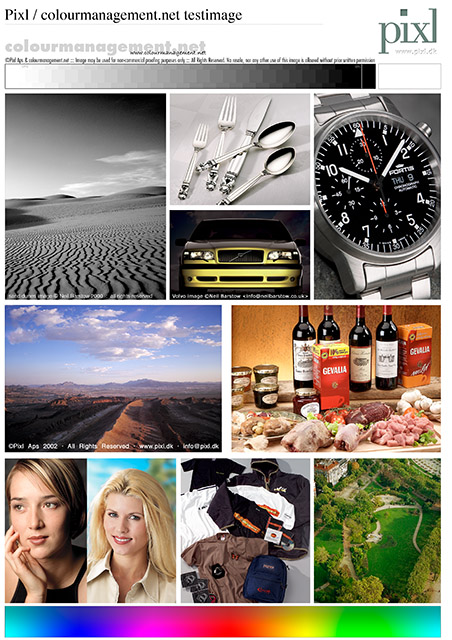
That's Pismo Beach above, one of my own pictures, taken on 6cm roll film on a wide format Wista camera, what a beautiful place